What Is a HEIC File and Why Does Your iPhone Use It?

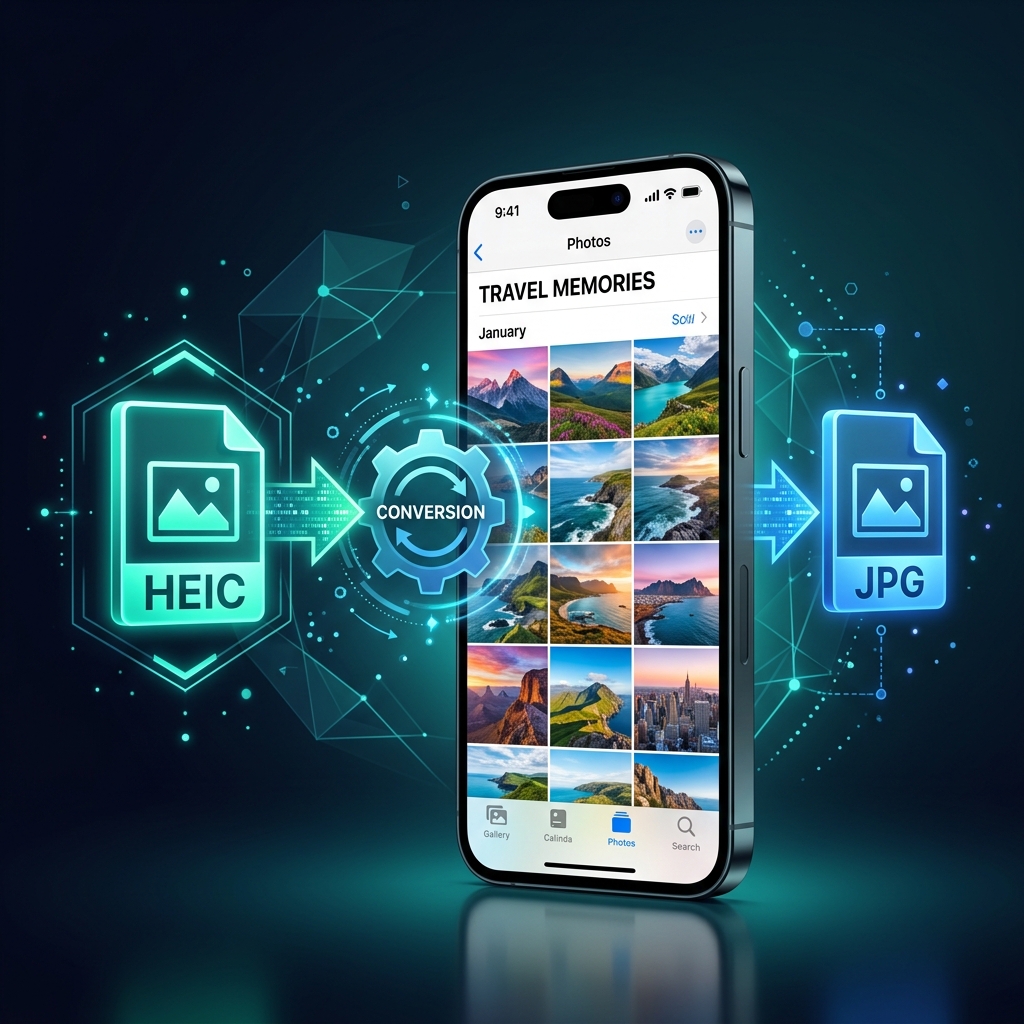
A HEIC file is a High Efficiency Image Container - Apple's modern photo format used on iPhones since iOS 11 (2017). It stores photos using HEVC (H.265) compression, making files 40–50% smaller than JPG at the same visual quality. HEIC supports Live Photos, 16-bit color depth, and image sequences, which JPEG cannot.
- HEIC stands for High Efficiency Image Container - Apple's implementation of the HEIF standard using HEVC compression.
- iPhones have saved photos as HEIC by default since iOS 11 in 2017, automatically freeing up storage space.
- HEIC files are typically 40–50% smaller than equivalent JPG files with no perceptible loss in quality.
- HEIC is not universally compatible - older Windows PCs, Android phones, and some web platforms require conversion to JPG.
- You can switch your iPhone back to JPG in Settings → Camera → Formats → Most Compatible.
- The fastest way to convert HEIC to JPG is using a free browser-based converter - no software installation needed.
You just took a stunning photo on your iPhone and emailed it to a friend on Windows - only to hear back that they can't open it. The culprit? A HEIC file. If you've ever wondered why your iPhone doesn't just save photos as regular JPGs like every other device, you're not alone. It's one of the most common frustrations iPhone users encounter.
Understanding what a HEIC file is - and why Apple chose it - makes the format much less mysterious. In this guide, you'll get a complete breakdown: the technical definition, the real-world advantages, the compatibility limitations, and exactly how to open or convert HEIC files on any device.
What Is a HEIC File? (Full Definition)
HEIC stands for High Efficiency Image Container. It is Apple's specific implementation of the HEIF (High Efficiency Image File Format) standard, which was developed by the Moving Picture Experts Group (MPEG) - the same organization behind the MP4 video format.
The key difference between HEIF and HEIC is the compression codec used inside the container:
- HEIF is the container format (think of it like a ZIP file - it holds data)
- HEIC is HEIF using HEVC (H.265) video compression to encode the image data
- HEVC (High Efficiency Video Coding) is the same codec used to compress 4K video - it is extraordinarily efficient
In plain English: HEIC is a smarter container that uses cutting-edge video compression technology to shrink your photos without making them look worse.
HEIC File Extension
HEIC files typically use the .heic file extension. You may also occasionally see .heif for files using other codecs within the HEIF container. On iPhones, .heic is the standard extension for all camera photos.
What Does HEIC Store?
Unlike JPEG, which stores a single image, HEIC is a container format capable of holding:
- A single still photo
- Live Photos (a short video clip + still frame)
- Burst photo sequences (multiple frames in one file)
- Depth map data (for Portrait Mode photos)
- HDR image data (multiple exposures)
- Full EXIF metadata (GPS location, camera settings, timestamps)
- Audio memos attached to photos
💡 Expert Insight: The HEIC format's ability to store a Live Photo (video clip + still) in a single file is a significant architectural advantage over JPEG, which can only hold one static image. This is why Apple's Photo Memories and animations work so seamlessly on iPhone.
Why Does Your iPhone Use HEIC?
Apple introduced HEIC as the default camera format in iOS 11 (September 2017), rolling it out on iPhone 7 and later models. The decision was driven by one core problem: storage space.
As iPhone cameras improved to 12MP, then 48MP - shooting 4K and ProRes video - photo and video files were eating storage at an alarming rate. HEIC was Apple's engineering answer to this problem.
The Storage Savings Are Real
On average, a typical iPhone photo saved as HEIC is 2–4 MB. The same photo saved as JPG would be 4–8 MB. Over a year of casual photography (say, 3,000 photos), HEIC saves approximately 6–12 GB of storage - nearly the entire capacity of an entry-level iPhone model.
Apple's Strategic Motivation
- Hardware efficiency: Apple Silicon chips have dedicated HEVC encode/decode hardware, making HEIC creation nearly instantaneous with minimal battery drain
- iCloud efficiency: Smaller files mean faster uploads, lower storage costs, and faster photo sync across devices
- Future-proofing: HEIF/HEIC is an open MPEG standard - not proprietary to Apple - designed to be the successor to JPEG
- Feature support: No other widely-adopted format could store Live Photos, depth maps, and image sequences in a single file
HEIC vs JPG: Side-by-Side Comparison
The most common question about HEIC is how it stacks up against the universally familiar JPG (JPEG) format. Here's a complete comparison:
| Feature | HEIC | JPG (JPEG) |
|---|---|---|
| File Size (same quality) | 40–50% smaller ✓ | Baseline (larger) |
| Color Depth | 16-bit (billions of colors) ✓ | 8-bit (16.7 million colors) |
| Transparency Support | Yes (alpha channel) ✓ | No |
| Multiple Frames / Sequences | Yes (Live Photos, bursts) ✓ | No |
| HDR / Wide Color Gamut | Full P3 / HDR support ✓ | Limited (sRGB only) |
| Lossless Mode | Yes ✓ | No (lossy only) |
| EXIF Metadata | Yes ✓ | Yes ✓ |
| Depth Map Storage | Yes (Portrait Mode) ✓ | No |
| Universal Compatibility | Limited (modern devices only) | Universal (every device) ✓ |
| Web Browser Support | Safari only (natively) | All browsers ✓ |
| Windows Support (native) | Requires extension install | Built-in ✓ |
| Editing Software Support | Growing (most modern apps) | Universal ✓ |
| Standard Body | MPEG (ISO/IEC) | JPEG Committee (ISO/IEC) |
| Year Introduced | 2015 (standard), 2017 (iPhone) | 1992 |
Bottom line: HEIC is technically superior in virtually every measurable way. The only area where JPG wins is universal compatibility - and that gap is narrowing every year as software support for HEIC improves.
HEIC Pros and Cons
✅ Pros of HEIC
- 40–50% smaller files vs JPG
- 16-bit color depth for richer photos
- Stores Live Photos in one file
- Supports transparency (alpha)
- Full HDR and P3 wide color support
- Lossless compression option
- Stores multiple frames and depth data
- Open standard (not proprietary)
❌ Cons of HEIC
- Not universally compatible
- Requires codec install on Windows 10
- Not supported natively by most browsers
- Some image editors still lack full support
- Can't be uploaded to all web platforms
- Conversion adds an extra step for sharing
How to Open a HEIC File
Opening a HEIC file depends on your operating system. Here are the options for every major platform:
On iPhone and iPad (iOS / iPadOS)
HEIC files open natively in the Photos app, Files app, and virtually all iOS photo editing apps. No action needed - it's the iPhone's native format.
On Mac (macOS)
Mac supports HEIC natively since macOS High Sierra (10.13). You can open HEIC files with Preview, Photos, Quick Look (press Space in Finder), and most modern Mac applications.
On Windows 10 and Windows 11
Windows does not include HEIC support by default. You have two options:
- Install the free codec: Go to the Microsoft Store and install "HEIF Image Extensions" (free) and optionally "HEVC Video Extensions". After installing, Windows Photos and File Explorer thumbnails will display HEIC files natively.
- Convert to JPG: Use a free browser-based tool like Imageconvertix to instantly convert your HEIC files to JPG without any software installation.
On Android
Android support for HEIC is inconsistent. Newer Android phones (Android 12+) can often open HEIC natively in Google Photos. For older Android devices, convert the file to JPG before sharing or viewing.
In Web Browsers
Only Safari supports HEIC natively. Chrome, Firefox, and Edge cannot display HEIC files inline. Convert to JPG or WebP before uploading HEIC images to websites or social media.
💡 Pro Tip: When emailing or sharing photos from your iPhone, iOS automatically converts HEIC to JPG if the receiving platform doesn't support HEIC. This is why AirDrop sends HEIC but email often sends JPG - iOS detects the destination's compatibility automatically.
How to Convert HEIC to JPG (Free, No Software)
The fastest and most private way to convert HEIC to JPG is using a browser-based converter. Imageconvertix converts HEIC files entirely in your browser - your photos never leave your device.
- Open Imageconvertix HEIC to JPG Converter in your browser.
- Click "Choose Files" or drag and drop your
.heicfiles onto the converter. - Select JPG as the output format (it may already be selected).
- Adjust quality if needed (85–90% is recommended for the best balance).
- Click Convert and download your JPG files instantly.
You can convert multiple HEIC files at once using batch processing - no limit on the number of files.
How to Convert HEIC to JPG on iPhone
The easiest method is to simply AirDrop or email the photo to yourself - iOS will auto-convert it to JPG. Alternatively, go to Settings → Camera → Formats → Most Compatible to make all future photos save as JPG.
How to Convert HEIC to JPG on Mac
Open the HEIC file in Preview, then go to File → Export and choose JPEG as the format. You can also select multiple HEIC files in Finder and use Quick Actions → Convert Image to export as JPG.
How to Change Your iPhone to Save Photos as JPG
If you prefer to avoid HEIC entirely, you can switch your iPhone to save photos as JPG (JPEG). Here's how:
- Open the Settings app on your iPhone.
- Scroll down and tap Camera.
- Tap Formats at the top of the Camera settings.
- Select "Most Compatible" instead of "High Efficiency".
From this point forward, your iPhone camera will save photos as JPG files. Note: this only affects new photos - existing HEIC photos won't be changed.
⚠️ Trade-off to consider: Switching to "Most Compatible" (JPG) will roughly double the file size of your photos. On a 256 GB iPhone, this could mean thousands fewer photos before you run out of space. HEIC is the smarter choice if you have iCloud backup enabled.
Common HEIC Mistakes to Avoid
- ❌ Renaming .heic to .jpg: This doesn't convert the file - it just changes the extension. The file remains HEIC internally and will still fail to open on unsupported systems. Use a proper converter.
- ❌ Uploading HEIC directly to websites: Most web platforms (WordPress, Etsy, eBay, etc.) don't accept HEIC. Always convert to JPG or WebP before uploading product or portfolio images.
- ❌ Assuming conversion always loses quality: Converting HEIC to JPG at 90–100% quality produces virtually indistinguishable results. You're not degrading your photo in any meaningful way.
- ❌ Disabling HEIC without considering storage implications: If you switch to JPG without managing iCloud or local storage, you may find your iPhone fills up significantly faster.
- ❌ Ignoring HEIC for web projects: If you're building a website and receiving image assets from an iPhone user, always request JPG, PNG, or WebP deliverables - or use a batch converter before publishing.
HEIC Best Practices
- Keep HEIC on iPhone: Leave your iPhone on "High Efficiency" mode for storage savings. Only convert when you need to share with non-Apple users.
- Convert before uploading to the web: Always convert HEIC to JPG or WebP before uploading to websites, social media, or e-commerce platforms.
- Use batch conversion for large photo libraries: If you're migrating or organizing thousands of HEIC photos, use a batch converter to process them all at once.
- Preserve originals: Always keep your original HEIC files as backup - they contain more data (Live Photo, depth map) than a converted JPG.
- For professional photography workflows: Consider shooting in RAW (ProRAW on iPhone 12 Pro+) rather than HEIC when maximum editability is needed.
Free HEIC Conversion & Image Tools
Imageconvertix offers a full suite of browser-based image tools - no upload, no account, no watermark:
People Also Ask
What does HEIC stand for?
HEIC stands for High Efficiency Image Container. It is Apple's implementation of the HEIF (High Efficiency Image File Format) standard, using HEVC (H.265) compression to store photos at significantly smaller file sizes than JPEG.
Is HEIC the same as HEIF?
Almost, but not exactly. HEIF is the container standard (developed by MPEG). HEIC is Apple's specific implementation of HEIF that uses HEVC (H.265) as its codec. In everyday use, the terms are interchangeable when referring to iPhone photos.
Can I open HEIC files on Windows without software?
Not without some setup. On Windows 10/11, you need to install the free "HEIF Image Extensions" from the Microsoft Store, which then allows Windows Photos and Explorer to open HEIC files. Alternatively, use a free online converter to convert HEIC to JPG without installing anything.
Does converting HEIC to JPG reduce quality?
Converting HEIC to JPG at a high quality setting (85–95%) produces virtually imperceptible quality loss. However, both HEIC and JPG use lossy compression, so converting does introduce a small amount of recompression. Always save your original HEIC files as a backup before converting.
Why can't Android open HEIC files?
Older Android versions lack native HEVC decoding libraries needed to render HEIC images. Android 12+ added broader HEIC support through Google Photos, but compatibility varies by device manufacturer. Convert HEIC to JPG for guaranteed compatibility across all Android versions.
When did Apple start using HEIC?
Apple introduced HEIC as the default photo format in iOS 11, released September 2017, starting with iPhone 7 and later models. Macs received native HEIC support in macOS High Sierra (10.13), also in 2017.
Can I upload HEIC files to Instagram or Facebook?
When you upload from your iPhone app, Instagram and Facebook automatically convert HEIC to their preferred format (JPG or WebP). However, if you try to upload a HEIC file from a Windows PC or Android device to these platforms via browser, it may fail. Convert to JPG first for reliable uploads.
What is the difference between HEIC and PNG?
PNG uses lossless compression and is ideal for graphics, logos, and screenshots. HEIC uses lossy (and optionally lossless) compression designed for photographs. HEIC photos are far smaller than PNG at comparable visual quality. PNG is universally supported everywhere; HEIC is not. For iPhone photography, HEIC is the right choice; for design assets and graphics, use PNG or JPG.
Frequently Asked Questions (FAQ)
What is a HEIC file?
A HEIC file is a High Efficiency Image Container - Apple's default photo format for iPhones, using HEVC (H.265) compression to store images at 40–50% smaller file sizes than JPG while maintaining equal or better visual quality.
Why does my iPhone save photos as HEIC instead of JPG?
Apple switched to HEIC in iOS 11 to save storage space. A HEIC photo is roughly half the size of a JPG at the same quality, meaning you can store approximately twice as many photos on your iPhone before running out of space.
How do I open a HEIC file on Windows?
Install the free "HEIF Image Extensions" from the Microsoft Store, or convert your HEIC file to JPG using a free online tool like Imageconvertix - no software installation required.
How do I convert HEIC to JPG for free?
Use Imageconvertix's browser-based HEIC to JPG converter. Drop your files, select JPG as the output format, and download your converted images instantly. It's 100% free, runs in your browser, and your photos are never uploaded to a server.
Is HEIC better than JPG?
Technically, yes - HEIC offers better compression, higher color depth, transparency support, and Live Photo storage. The only drawback is compatibility: JPG works everywhere, while HEIC requires modern software. For most users, HEIC on iPhone with JPG for sharing is the best workflow.
Can I change my iPhone to save photos as JPG?
Yes. Go to Settings → Camera → Formats and select "Most Compatible". Your iPhone will save all new photos as JPG. This trades storage efficiency for universal compatibility.
Is HEIC the same as HEIF?
HEIF is the container standard; HEIC is Apple's implementation using HEVC compression inside that container. They are used interchangeably in everyday conversation when referring to iPhone photos.
Related Reading & Future Articles
Interested in going deeper on image formats and optimization? These related topics pair well with this guide:
- 📖 How to Compress Images Without Losing Quality - Read the guide
- 📖 WebP vs AVIF: Which Format Should You Use in 2026? - Read the comparison
- 📖 How to Optimize Images for Web & SEO - Read the guide
Convert HEIC to JPG - Free, Instant, Private
No uploads. No software. No watermarks. Convert your iPhone HEIC photos to JPG, WebP, PNG, or AVIF directly in your browser - in seconds.
Convert HEIC to JPG Free →Related: Image Compression Guide · WebP vs AVIF · Image SEO Guide · Batch Processing